

Embedding a feedback form on your website is one of the most practical ways to collect website feedback directly from users while they browse, compare, search for information or try to complete an action.
Website feedback gives you the context that analytics alone cannot always provide. Analytics can show you what users do, such as where they click, where they drop off or which pages perform well, but direct feedback explains why something happens. Embedded feedback forms can help you collect this information directly from users while they are still experiencing your website.
In this blog, we will explain how to embed a feedback form on your website, where to place it and how to use website feedback widgets to better understand the user experience.
TL;DR – Article Summary
- An embedded feedback form is a feedback form placed directly on a webpage, often through a feedback widget, button, slide-in or embedded survey.
- Website feedback forms help you understand why users behave in a certain way, not just what they do.
- The best pages to collect feedback are often product pages, pricing pages, checkout flows, support pages and high-exit pages.
- Good feedback forms are short, relevant, well-timed and easy to complete.
- Website feedback widgets help teams collect in-context feedback and turn it into practical UX improvements.
In this blog, we’ll cover:
- What is an embedded website feedback form?
- Why embed a feedback form on your website?
- How can I implement website feedback widgets to understand user experience?
- How to embed a feedback form on your website
- Best practices for embedded feedback forms
- How Mopinion can help
- Final thoughts
- FAQ
What is an embedded website feedback form?
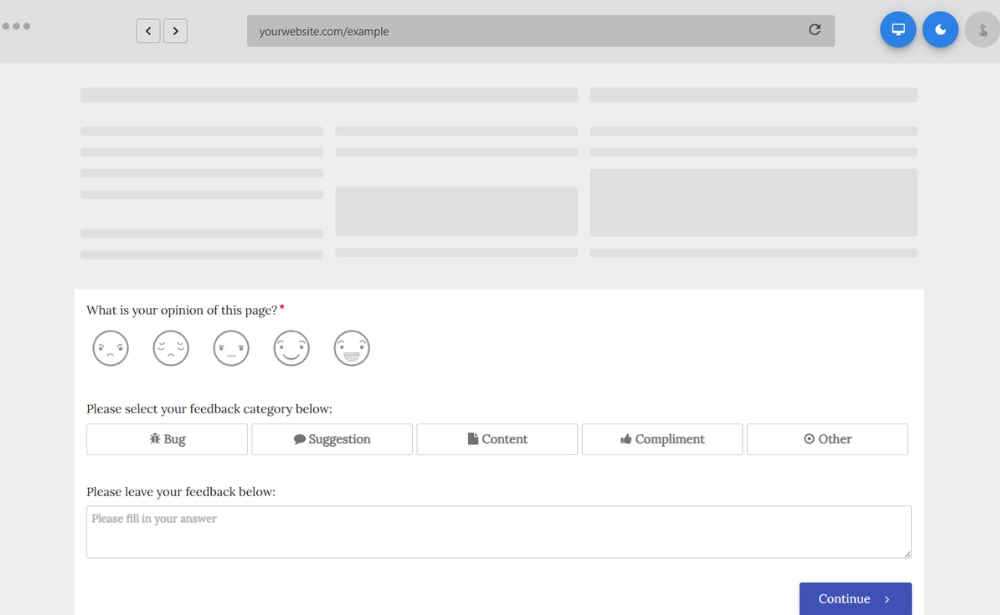
An embedded website feedback form is a feedback form that appears directly on a webpage. It allows visitors to share feedback, report an issue or answer a short question without leaving the page they are using.
This can be shown as a feedback button, embedded survey, slide-in form, pop-up survey or visual feedback widget. The goal is to make it easy for users to share what they are experiencing at the moment.
For example, a website feedback form might ask:
- Was this page helpful?
- Did you find what you were looking for?
- What stopped you from completing your purchase?
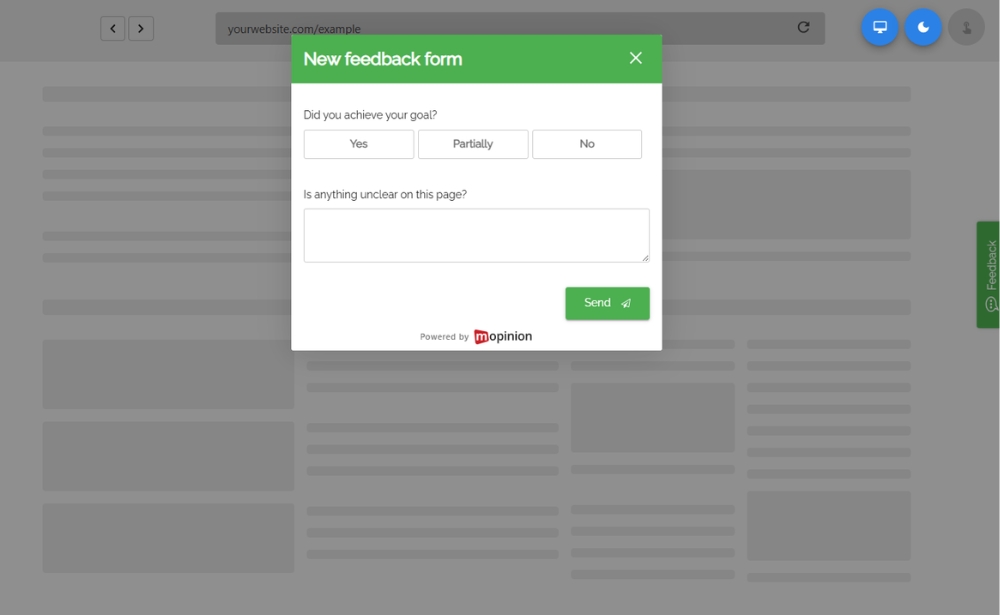
- Is anything unclear on this page?
The main benefit is context. Instead of asking users about their experience later, you collect feedback while the page, task or issue is still fresh. This makes it easier to connect feedback to a specific page, journey or action.
Why embed a feedback form on your website?
Embedding a feedback form on your website helps you understand the user experience from the user’s point of view. This is especially useful when your analytics show that something is happening, but not why it is happening.
For example, you might see that many users leave your pricing page without converting. A feedback form can help you understand whether the pricing is unclear, whether important information is missing or whether users are comparing options.
This makes website feedback useful for:
- Improving website usability
- Finding friction in key journeys
- Optimising conversion paths
- Improving product or service pages
- Understanding content gaps
- Identifying bugs or technical issues
- Improving help centre content
According to Nielsen Norman Group, feedback requests should be timed carefully and should not interrupt users while they are trying to complete a task. This is why the placement and timing of your feedback form matter just as much as the questions you ask.
For more context on collecting feedback across digital journeys, you can also read our blog on website feedback surveys.
How can I implement website feedback widgets to understand user experience?
To implement website feedback widgets and understand user experience, start by choosing the pages where feedback can give you the most context. These are usually pages where users browse, compare, search for information or try to complete an important action, such as product pages, pricing pages, checkout flows or help centre articles.
Then create a short website feedback form with questions that match the page and user journey. For example, you can ask whether users found what they were looking for, what stopped them from continuing or what information is missing. Once your form is ready, add it to your website using a feedback widget, embedded form, slide-in survey or targeted trigger.
After the widget is live, analyse the responses to find patterns in the user experience. This can help you understand where users are confused, where friction appears, which pages need clearer content and what improvements should be prioritised.
A feedback widget can show you:
- Which pages create confusion
- Where users are missing information
- What prevents users from converting
- Which support articles are not helpful enough
- Where technical issues are happening
- What users expect from a page or journey
This gives UX, marketing, product and digital teams practical insights they can use to improve the website experience. If you need inspiration for different feedback formats, take a look at these website feedback examples.
How to embed a feedback form on your website
To embed a feedback form on your website, start by deciding where feedback is most valuable. Then choose the right type of form, create short questions and add the feedback widget or embed code to the selected pages.
Here is a simple step-by-step process.
1. Choose the right page
Not every page needs a feedback form. Start with pages where feedback can help you make better decisions.
Good examples include:
- Product or service pages
- Pricing pages
- Checkout pages
- Contact pages
- Help centre articles
- Login or account pages
- Confirmation pages
- High-exit pages
These are often pages where users make decisions, look for important information or complete a task.
2. Define your feedback goal
Before creating the form, decide what you want to learn.
For example:
- Do users understand this page?
- Are users finding the information they need?
- What is stopping users from converting?
- Was the support article helpful?
- Is the checkout process easy to complete?
A clear goal helps you ask better questions and avoid collecting vague feedback.
3. Choose the right feedback form type
There are several ways to embed a feedback form on your website.
A feedback button lets users open a form when they want to share feedback. This is useful for passive, always-on feedback.
An embedded survey appears directly within the page content. This works well for help centre articles, blog pages or confirmation pages.
A slide-in form appears from the side or bottom of the page. This is useful when you want the form to be visible without fully interrupting the user.
A triggered feedback form appears after a specific action, such as time on page, scroll depth, exit intent or task completion.
A visual feedback widget lets users highlight a specific part of the page. This is useful for reporting bugs, layout issues or confusing page elements.
The best format depends on the page and the kind of feedback you want to collect.
4. Ask short and relevant questions
Website feedback forms should be quick to complete. In most cases, one to three questions are enough.
Strong examples include:
- Was this page helpful?
- Did you find what you were looking for?
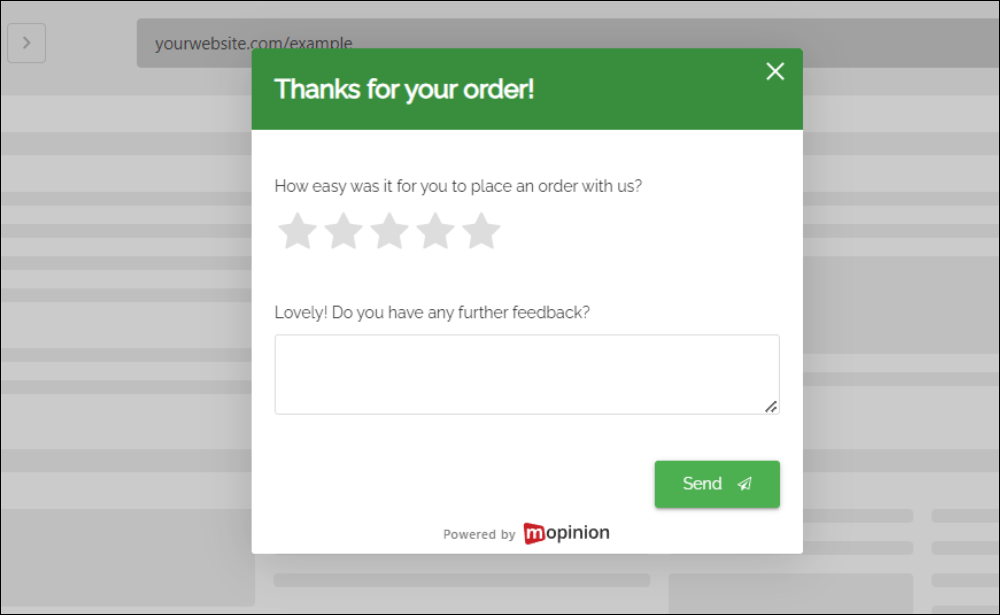
- How easy was it to complete your task?
- What information is missing?
- What stopped you from continuing?
- What could we improve on this page?
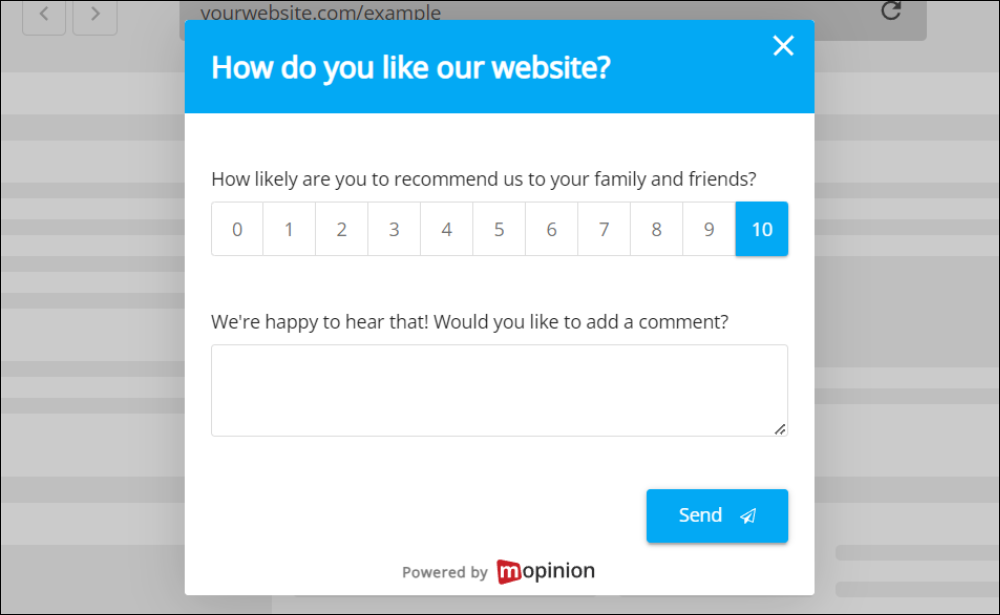
A rating question can help you measure trends, while an open text field helps explain the reason behind the score.
For example:
“How easy was it to find what you needed?”
Follow-up:
“Can you tell us why?”
This gives you both measurable data and useful context.
5. Decide when the form should appear
Timing has a big impact on feedback quality. If the form appears too early, users may not have enough experience to answer. If it appears at the wrong moment, it can interrupt the journey.
Good moments to ask for feedback include:
- After a user has spent time on a page
- After a user scrolls through most of an article
- After a failed search
- After a completed purchase
- After a form submission
- When a user is about to leave a key page
Google’s Core Web Vitals highlight the importance of loading performance, interactivity and visual stability for user experience. This is why feedback widgets should be implemented in a way that does not slow down or disrupt the page.
6. Add the widget or embed code
Once the form is ready, you can add it to your website. Depending on your feedback software, this usually involves adding a widget script, using a tag manager or placing an embed code on the page.
The process usually looks like this:
- 1) Create your feedback form.
- 2) Choose the form type.
- 3) Set the page or journey where it should appear.
- 4) Add targeting rules, such as URL, device or user behaviour.
- 5) Add the widget script or embed code.
- 6) Test the form on desktop and mobile.
- 7) Publish the form.
If your team uses a tag manager, you can often manage feedback widgets without changing the website code directly.
7. Analyse the feedback
Once your form is live, look for patterns in the responses.
Pay attention to:
- Repeated complaints
- Missing information
- Confusing wording
- Bugs or technical issues
- Differences between desktop and mobile feedback
- Feedback linked to specific pages or journeys
The goal is not just to collect feedback. The goal is to understand what needs to be improved.
8. Turn feedback into action
Website feedback becomes valuable when it leads to action.
For example:
- If users say pricing is unclear, simplify the pricing page.
- If users cannot find delivery information, make it more visible.
- If users say a help article is not useful, update the content.
- If users report a bug, share it with the right team.
- If users abandon checkout, investigate the reason and test improvements.
This helps teams move from assumptions to user-driven improvements.
Best practices for embedded feedback forms
To get better results from your website feedback forms, keep these best practices in mind.
Keep forms short
Only ask what you really need to know. Short forms are easier to complete and often lead to clearer answers.
Make questions page-specific
A question about a pricing page should be different from a question on a help article. Page-specific questions lead to more useful insights.
Avoid interrupting users
Do not block users when they are trying to complete an important task. Use subtle feedback buttons, slide-ins or well-timed triggers instead.
Test on mobile
Your feedback form should be easy to open, read and complete on mobile devices.
Connect feedback to the right page
Feedback is more useful when you know exactly where it came from. This helps teams understand which page, journey or element needs attention.
Review feedback regularly
Collecting feedback is only the first step. Make sure someone is responsible for reviewing responses and sharing insights with the right teams.
For teams collecting feedback after a purchase or completed journey, our blog on post-purchase customer feedback forms also explains how to ask relevant questions at the right moment.
How Mopinion can help
Mopinion helps digital teams collect feedback directly across their websites, apps and online journeys. With Mopinion, you can create targeted feedback forms and show them as feedback buttons, embedded forms, slide-ins or triggered surveys.
You can collect feedback on specific pages, such as product pages, checkout flows, pricing pages and help centre articles. You can also use visual feedback to help users highlight bugs, confusing elements or design issues on the page.
This helps UX, marketing, product and digital teams understand what users are experiencing and prioritise improvements based on real feedback.
As part of Netigate, Mopinion also helps organisations connect digital feedback with broader customer insights, making it easier to understand the full customer journey.
Final thoughts
Learning how to embed a feedback form on your website is a practical way to better understand your users. It helps you collect feedback in the moment, directly on the pages where users are browsing, deciding or completing tasks.
The most effective feedback forms are short, relevant and shown at the right time. They give users a simple way to explain what is working, what is missing and what could be improved.
When combined with analytics, embedded feedback forms give you a clearer view of the user experience. They help you understand the why behind user behaviour and turn that insight into better digital journeys.
Frequently Asked Questions
An embedded website feedback form is a form placed directly on a webpage that allows visitors to share feedback without leaving the page. It can appear as an embedded survey, feedback button, slide-in, pop-up or visual feedback widget.
To embed a feedback form on your website, create the form in your feedback software, choose how and where it should appear, set any targeting rules and add the widget script or embed code to your website. You can often install it directly in your website code or through a tag manager.
Feedback forms are most useful on pages where users make decisions, search for information or complete important tasks. Common placements include product pages, pricing pages, checkout flows, help centre articles, contact pages, confirmation pages and pages with high exit rates.
Website feedback questions should be short and relevant to the page or journey. You can ask whether the page was helpful, whether users found what they needed, how easy it was to complete a task, what information was missing or what stopped them from continuing.
A website feedback form should appear after users have had enough time to experience the page or complete an action. Useful triggers include time on page, scroll depth, a failed search, a completed purchase, a form submission or exit intent on an important page.
An embedded form is usually displayed directly within the content of a webpage. A feedback widget is a broader term for a feedback tool that can appear as a button, tab, slide-in, pop-up or triggered survey. Both allow users to provide feedback without leaving the website.
Ready to see Mopinion in action?
Want to learn more about Mopinion’s all-in-1 user feedback platform? Don’t be shy and take our software for a spin! Do you prefer it a bit more personal? Just book a demo. One of our feedback pro’s will guide you through the software and answer any questions you may have.